
🤔 你是不是也遇到过这种情况?
做一个Windows桌面工具,参数配置项越堆越多——串口号、波特率、超时时间、日志路径、采样频率……十几二十个控件往界面上一放,窗口直接撑爆。
用户拖动窗口缩小一下?完蛋,下半截全消失了。
这玩意儿说起来不是什么高深的架构问题,就是一个最朴素的需求:让配置页能滚动。但你要是用原生Tkinter的Canvas + Scrollbar手撸一个可滚动容器,那代码写出来……怎么说,像在用螺丝刀挖土,能干,但不是正经用法。
CustomTkinter(简称CTk)自带的CTkScrollableFrame正是为这种场景而生的。今天咱们就把这个组件从头到尾拆一遍,把参数配置页做得既好看又好用。
🧱 先搞清楚:ScrollableFrame到底是什么
CTkScrollableFrame本质上是一个带内置滚动条的容器Frame。它把Canvas和Scrollbar的组合封装掉了,对外暴露的接口和普通的CTkFrame几乎一致——你把子控件往里面pack/grid,它自动处理滚动逻辑。
这是它和原生方案最大的区别:你不需要关心Canvas的坐标映射,也不需要手动绑定<Configure>事件。代码量能砍掉六七成。
它支持横向和纵向两个滚动方向,但在参数配置页这个场景里,纵向滚动是绝对主角。横向滚动偶尔有用,但配置项一般都是上下堆叠的,几乎用不到。
⚙️ 核心参数全解析
先来一段最基础的初始化代码,让大家有个感性认识:
pythonimport customtkinter as ctk

app = ctk.CTk()
app.geometry("480x600")
app.title("设备参数配置")

scroll_frame = ctk.CTkScrollableFrame(
    master=app,
    width=440,
    height=540,
    corner_radius=8,
    fg_color="#1e1e2e",
    scrollbar_fg_color="#2a2a3e",
    scrollbar_button_color="#5c5f77",
    scrollbar_button_hover_color="#7c7f97",
    label_text="参数配置",
    label_fg_color="#313244",
    label_text_color="#cdd6f4",
    label_font=ctk.CTkFont(family="微软雅黑", size=14, weight="bold"),
    orientation="vertical"
)
scroll_frame.pack(padx=20, pady=20, fill="both", expand=True)
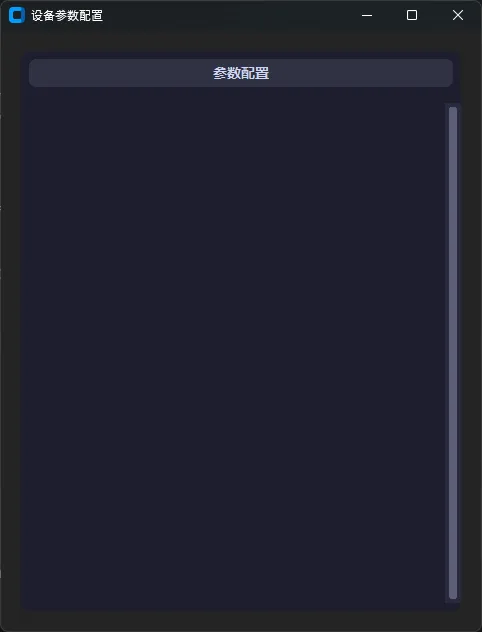
逐个拆解一下关键参数:
width / height:这是容器本身的显示尺寸,不是内部内容区的尺寸。内容超出这个高度,滚动条就出来了。配合pack(fill="both", expand=True)使用时,这两个值会被布局管理器覆盖,所以有时候设不设都行——但如果你用place布局,就必须明确指定。
作为.NET开发者,你是否还在用Timer或Task.Delay来处理定时任务?是否遇到过定时器漂移、内存泄漏或性能问题?Microsoft在.NET** 6中引入了PeriodicTimer,专门为解决这些痛点而生!**
传统定时器方案存在诸多问题:System.Threading.Timer容易产生重叠执行,Task.Delay会造成时间漂移,而PeriodicTimer则提供了更精准、更高效、更安全的解决方案。本文将通过实战代码,带你掌握这个"定时任务神器"!
🔍 传统方案的痛点分析
问题一:时间漂移困扰
使用Task.Delay时,每次延时都会累积误差:
c#// ❌ 传统方案 - 存在时间漂移
public async Task BadPeriodicTask()
{
    while (true)
    {
        var startTime = DateTime.Now;

        // 业务逻辑耗时不固定
        await DoSomeWork();

        // 延时不准确,会累积误差
        await Task.Delay(TimeSpan.FromSeconds(5));

        Console.WriteLine($"实际间隔:{(DateTime.Now - startTime).TotalSeconds}秒");
    }
}
问题二:重叠执行风险
System.Threading.Timer可能导致任务重叠:
c#// ❌ 可能重叠执行
private Timer _timer = new Timer(async _ =>
{
    await LongRunningTask(); // 如果耗时超过间隔,会重叠执行
}, null, TimeSpan.Zero, TimeSpan.FromSeconds(5));
🎯 PeriodicTimer:完美解决方案
核心特性
- 精准间隔:基于高精度计时器,避免时间漂移
- 防重叠:内置机制防止任务重叠执行
- 高性能:减少GC压力,优化内存使用
- 取消支持:完美集成CancellationToken
💡 实战场景解决方案
🔥 场景一:数据同步任务
c#using Microsoft.Extensions.Hosting;

namespace AppPeriodicTimer
{
    public class DataSyncService : IHostedService
    {
        private readonly PeriodicTimer _timer;
        private readonly CancellationTokenSource _cancellationTokenSource;
        private Task _executingTask;

        public DataSyncService()
        {
            // 每10秒执行一次,精准无漂移
            _timer = new PeriodicTimer(TimeSpan.FromSeconds(10));
            _cancellationTokenSource = new CancellationTokenSource();
        }

        public Task StartAsync(CancellationToken cancellationToken)
        {
            _executingTask = ExecuteAsync(_cancellationTokenSource.Token);
            return Task.CompletedTask;
        }

        private async Task ExecuteAsync(CancellationToken cancellationToken)
        {
            try
            {
                // 🚀 关键:WaitForNextTickAsync确保精准间隔
                while (await _timer.WaitForNextTickAsync(cancellationToken))
                {
                    await SyncDataFromExternalApi();
                    Console.WriteLine($"数据同步完成 - {DateTime.Now:yyyy-MM-dd HH:mm:ss}");
                }
            }
            catch (OperationCanceledException)
            {
                // 正常取消,不需要处理
            }
        }

        private async Task SyncDataFromExternalApi()
        {
            // 模拟数据同步逻辑
            await Task.Delay(2000); // 业务处理时间
        }

        public async Task StopAsync(CancellationToken cancellationToken)
        {
            _cancellationTokenSource.Cancel();
            _timer.Dispose();

            if (_executingTask != null)
            {
                await _executingTask;
            }
        }
    }
    internal class Program
    {
        static async Task Main(string[] args)
        {
            DataSyncService dataSyncService = new DataSyncService();
            await dataSyncService.StartAsync(CancellationToken.None);
            Console.ReadKey();
        }
    }
}
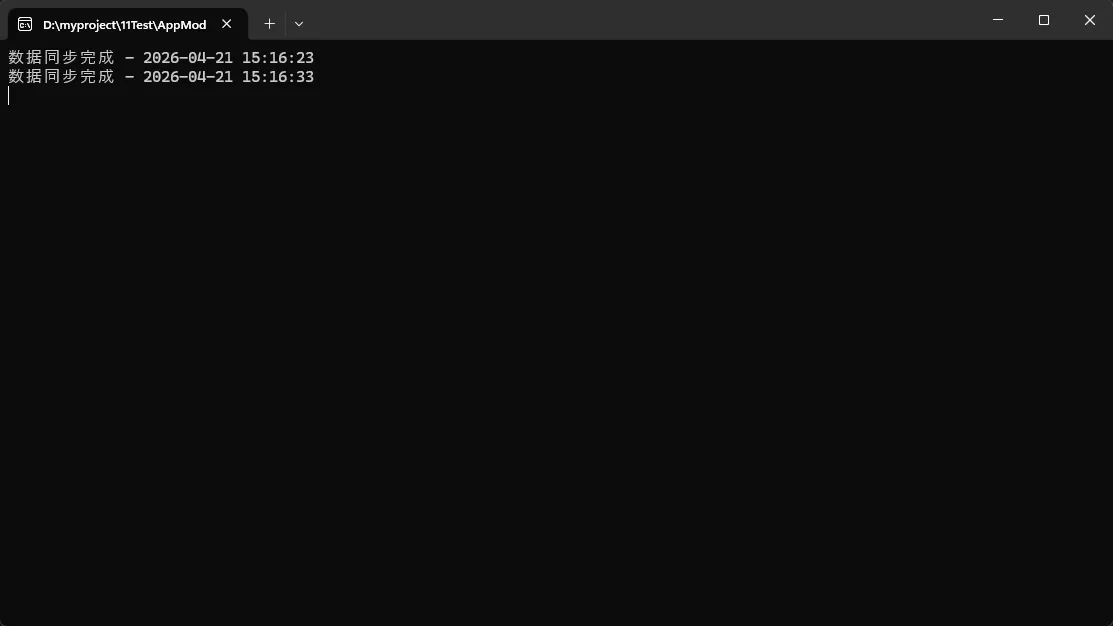
💡 关键要点:
WaitForNextTickAsync是核心方法,返回bool值表示是否应继续- 自动处理取消逻辑,无需手动检查CancellationToken
- 即使业务逻辑耗时变化,间隔依然精准
🏭 从一个真实项目说起
去年接了个工控项目——一台点胶机需要管理5个工站,每个工站有独立的参数配置界面。最初的方案?一个巨型窗口,所有控件堆在一起。结果可想而知:代码乱成一锅粥,客户改个按钮颜色我得找半天。
后来重构时用了CustomTkinter的CTkTabview,整个架构豁然开朗。今天就把这套经过项目验证的方案完整拆解给你。
🤔 为什么TabView是多页面管理的正解
先说说老方案的问题。
传统做法是用Frame堆叠,靠pack_forget()和pack()切换显示。这玩意儿在页面少的时候还凑合,一旦超过3个页面,状态管理就开始头疼——哪个Frame当前可见?切换时数据有没有保存?这些问题会把你逼疯的。
CTkTabview的核心优势在于它天然隔离了各页面的命名空间。每个tab本质上是一个独立的CTkFrame容器,你往里面塞什么控件都不会互相干扰。更重要的是,它自带了标签页切换的视觉反馈,用户体验直接上了一个档次。
🚀 基础用法:5分钟跑起来
先把环境搭好。Windows下直接:
bashpip install customtkinter
最简单的TabView长这样:
pythonimport customtkinter as ctk

app = ctk.CTk()
app.geometry("800x600")
app.title("多工站管理系统")

# 创建TabView
tabview = ctk.CTkTabview(app, width=780, height=560)
tabview.pack(padx=10, pady=10, fill="both", expand=True)

# 添加标签页
tabview.add("工站1 - 点胶")
tabview.add("工站2 - 检测")
tabview.add("工站3 - 组装")

# 获取某个tab的Frame引用,往里面加控件
tab1_frame = tabview.tab("工站1 - 点胶")
label = ctk.CTkLabel(tab1_frame, text="点胶参数配置区")
label.pack(pady=20)

app.mainloop()
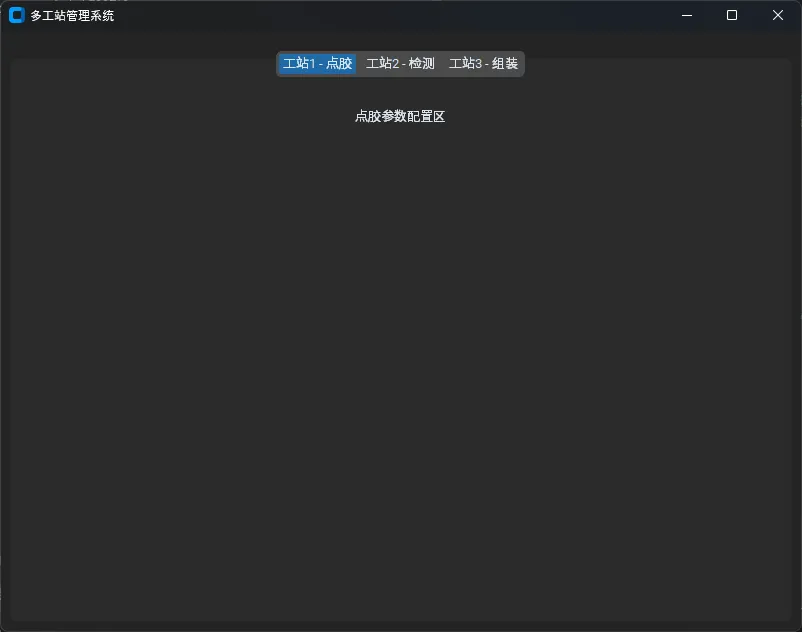
跑起来了吧?但这只是热身。
🤔 你是否也遇到过这些问题?
在 Winform 项目里集成 WebView2 的时候,很多开发者第一反应是:把控件拖上去,跑起来,完事。结果项目上线没多久,问题就来了——
用户反馈说网页加载异常,一查才发现是缓存路径冲突;有的项目需要加载内部系统,结果 Cookie 和本地存储在多实例场景下互相污染;还有的场景要求离线部署,WebView2 运行时版本不对,直接白屏。
这些问题的根源,往往不在于业务代码,而在于 WebView2 的环境初始化没做好。
CoreWebView2EnvironmentOptions 就是解决这类问题的核心配置入口。这篇文章会带你把这个类从头到尾拆开来看,配合可运行的代码示例,帮你在实际项目中真正用对它。读完之后,你将掌握:自定义用户数据目录的正确姿势、运行时版本控制策略、以及多实例隔离的落地方案。
🔍 问题深度剖析:默认配置的隐患
很多人用 WebView2 的方式大概是这样的:
csharpwebView21.Source = new Uri("https://your-internal-system.com");
这没什么问题,能跑。但 WebView2 在没有显式配置环境的情况下,会使用默认的用户数据目录,路径通常落在 %APPDATA%\你的程序名\EBWebView 下面。
这个默认行为带来几个潜在风险:
风险一:多实例数据污染。 如果你的程序允许同时开多个窗口,每个窗口加载不同的业务系统,但它们共用同一个用户数据目录,Cookie、LocalStorage、IndexedDB 全都混在一起。轻则数据错乱,重则登录态互相覆盖。
风险二:程序升级或卸载残留。 默认路径用户通常感知不到,卸载程序后数据不会自动清理,久而久之磁盘里堆满了各种 EBWebView 目录,用户投诉磁盘占用莫名增大。
风险三:离线/内网环境下的运行时兼容问题。 有些企业内网机器上 WebView2 运行时版本参差不齐,没有做版本约束的话,行为差异会让你的调试工作变成噩梦。
这些问题的解法,都指向同一个地方——在创建 WebView2 环境时,通过 CoreWebView2EnvironmentOptions 进行精细化配置。
💡 核心机制:WebView2 环境是什么
在深入配置之前,先把概念捋清楚。
WebView2 的运行依赖三个层次:运行时(Runtime)、环境(Environment)、控制器(Controller)。
运行时是底层的 Chromium 内核,安装在机器上。环境是在运行时基础上建立的一个"沙箱上下文",它决定了数据存储在哪、用什么版本的运行时、启动时带什么参数。控制器则是把这个环境和具体的窗口句柄绑定起来,最终渲染出你看到的那个 WebView2 控件。
CoreWebView2EnvironmentOptions 就是创建"环境"这一步的配置对象,它在 CoreWebView2Environment.CreateAsync() 被调用之前设置好,一旦环境创建完成,大部分配置就不能再改了。
🤔 你是否遇到过这些困境?
在实际项目里,有一类问题几乎每个 C# 开发者都踩过坑——程序集加载时需要做一些全局性的初始化工作,但你不知道该把这段逻辑放在哪里。
比如注册全局的序列化器、初始化日志框架、预热缓存、设置默认编码……这些事情必须在任何业务代码执行之前完成,但又没有一个"天然"的入口。于是你开始在 Main() 里堆代码,或者在每个类的静态构造函数里写初始化,结果维护成本越来越高,初始化顺序也越来越难以控制。
C# 9.0 引入的 [ModuleInitializer] 特性,正是为了解决这个问题而生的。它提供了一种在程序集层面、任何用户代码执行之前自动触发初始化的机制,干净、优雅、无侵入。
读完本文,你将掌握:
ModuleInitializer的底层运行机制- 它与静态构造函数、
AppDomain事件的本质区别 - 3 个可直接落地的实战场景与完整代码
1️⃣ 问题深度剖析:初始化的"无主之地"
传统方案的痛点
在 [ModuleInitializer] 出现之前,C# 开发者通常有以下几种选择来处理全局初始化:
方案一:在 Main() 中集中初始化
csharpstatic void Main(string[] args)
{
    // 各种初始化逻辑堆在这里
    LogManager.Initialize();
    SerializerRegistry.RegisterDefaults();
    CacheWarmup.Run();
    // ... 然后才是真正的业务逻辑
}
这种方式最直接,但问题也最明显——它只适用于有 Main() 的可执行程序。类库项目根本没有入口点,你无法强制库的使用者在调用你的 API 之前先执行某段初始化代码。
方案二:静态构造函数(Static Constructor)
csharppublic static class MyLibrary
{
    static MyLibrary()
    {
        // 初始化逻辑
    }
}
静态构造函数的触发时机是"第一次访问该类型时",这意味着它是懒触发的,无法保证在程序集加载后立即执行。如果初始化逻辑涉及跨类型的依赖,顺序就很难控制,线程安全问题也随之而来。
方案三:约定俗成的"Init"方法
csharp// 要求使用者手动调用
MyLibrary.Initialize();
这是最脆弱的方案。一旦使用者忘记调用,程序可能在运行时才出现莫名其妙的错误,排查成本极高。
这三种方案都有一个共同的缺陷:初始化逻辑与调用者耦合,或者依赖运行时的某个特定时机,缺乏一种真正意义上"程序集自治"的初始化能力。
2️⃣ 核心要点提炼:ModuleInitializer 的底层机制
什么是 Module?
要理解 ModuleInitializer,首先要明白 .NET 里"模块(Module)"的概念。在 .NET 的 PE 文件结构中,一个程序集(Assembly)可以包含一个或多个模块(Module),通常情况下一个程序集就是一个模块。模块是 IL 代码的物理载体。
在 IL 层面,每个模块都可以有一个特殊的方法叫做 .cctor(模块级静态构造函数,也称 Module Initializer)。这个方法由 CLR 在模块被加载时自动调用,早于任何其他代码。
C# 9.0 的 [ModuleInitializer] 特性,正是将这个底层的 IL 机制暴露给了 C# 开发者。
使用规则与约束
[ModuleInitializer] 的使用有明确的编译器约束,必须满足以下条件:
- 方法必须是
static - 方法必须没有参数,也没有返回值(
void) - 方法不能是泛型方法,也不能包含在泛型类中
- 方法必须可以从模块内部访问(
internal或public均可) - 不能是
extern方法
csharpusing System.Runtime.CompilerServices;

namespace AppModuleInitializer
{
    internal static class AppInitializer
    {
        [ModuleInitializer]
        internal static void Initialize()
        {
            // 这里的代码会在程序集加载后、任何其他代码执行前自动运行
            Console.WriteLine("模块初始化器已触发");
        }
    }

    internal class Program
    {
        static void Main(string[] args)
        {
            Console.WriteLine("Hello, World!");
        }
    }
}
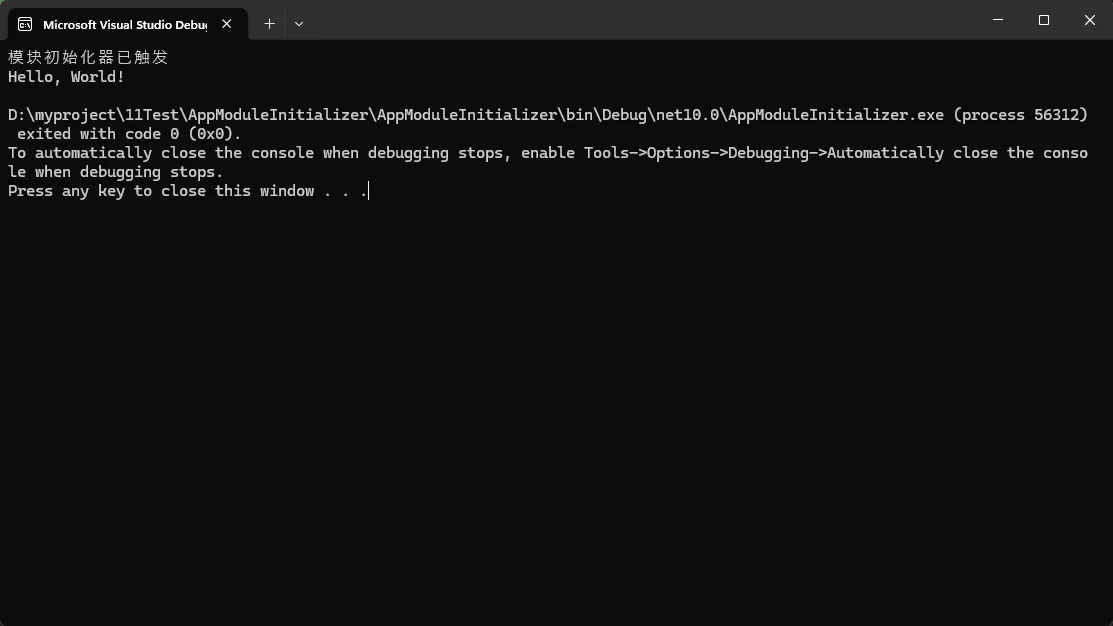
执行时机与顺序
[ModuleInitializer] 的执行时机非常早,具体顺序如下:
- CLR 加载程序集
- 触发所有
[ModuleInitializer]标记的方法(按编译顺序) - 触发各类型的静态构造函数(懒触发)
- 执行
Main()或其他入口代码
如果同一个程序集中存在多个 [ModuleInitializer] 方法,它们的执行顺序由编译器决定(通常按照源码中的定义顺序),不建议依赖多个初始化器之间的执行顺序。